

Introduction
In the fast-paced digital world, design-to-development handoff is often a major challenge. Designers create beautiful UI/UX designs in Figma, but turning those designs into a live, responsive website requires coding skills—or a smarter solution. That’s where Webflow comes in. Converting Figma to Webflow allows you to transform static designs into functional websites without writing heavy code, making the process faster and more efficient.
What is Figma?
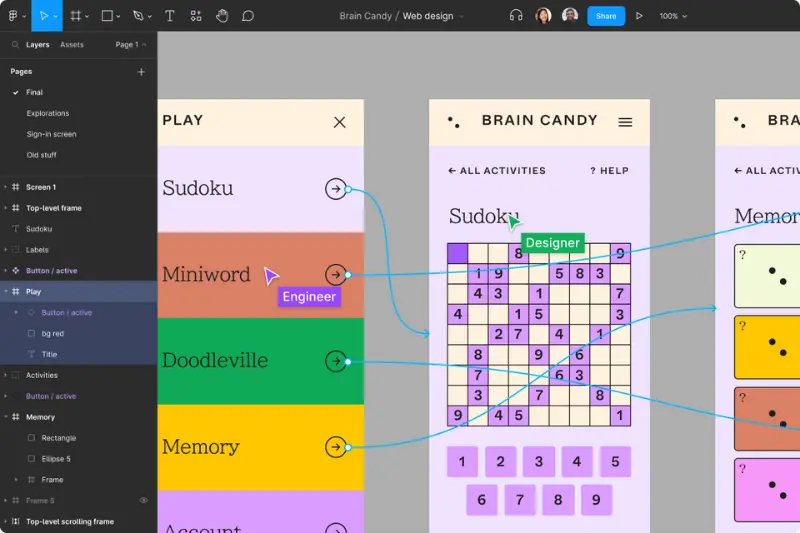
Figma is a cloud-based UI/UX design tool that allows designers to create interactive prototypes, collaborate in real-time, and build responsive layouts. With features like components, auto-layout, and design systems, Figma helps teams maintain consistency and efficiency throughout the design process.
You May Like It:
Python Backend Development: A Complete Guide
Coding Basics for Beginners – Learn Step by Step
Backend Development Roadmap: Complete Beginner’s Guide
What is Webflow?
Webflow is a no-code website builder that bridges the gap between design and development. It allows designers to build responsive websites visually, while still generating clean HTML, CSS, and JavaScript in the background. Webflow is especially popular among freelancers, startups, and agencies who want full control without relying on developers for every small change.
Why Convert Figma to Webflow?

Turning Figma designs into Webflow websites provides several benefits:
- Pixel-perfect websites that look exactly like your designs.
- Faster workflows by eliminating the need for handoff to developers.
- Responsive layouts that work on all devices.
- SEO-friendly websites with built-in optimization tools.
- Time and cost efficiency for freelancers and agencies.
Preparing Your Figma Design for Webflow
Before jumping into Webflow, make sure your Figma file is properly structured:
- Use consistent typography and color styles.
- Set up grid and layout systems for better responsiveness.
- Organize components, assets, and icons.
- Use auto-layout for flexible designs.
Step-by-Step Guide: Figma to Webflow Conversion
Export Assets from Figma
- Export images, SVGs, and icons in WebP or PNG format.
Set Up a New Project in Webflow
- Choose a blank canvas or template.
Implement Typography & Grids
- Match fonts, spacing, and colors from your Figma design.
Build Layouts and Sections
- Use Webflow’s visual designer to recreate the structure.
Add Interactions and Animations
- Apply hover effects, scroll animations, and micro-interactions.
Make the Website Responsive
- Adjust for mobile, tablet, and desktop breakpoints.
Best Practices for Smooth Conversion
- Keep your design system consistent in both tools.
- Optimize images before uploading to Webflow.
- Use symbols/components to avoid repetitive work.
- Regularly preview and test responsiveness.
You May Like It:
What is Secure Web Gateway (SWG) : Features Benefits and Future
Web Security: Importance Best Practices and Future Trends
Front-End Engineer: Role, Skills, and Career Guide
Common Mistakes to Avoid
- Ignoring mobile responsiveness.
- Using too many custom codes when Webflow features are enough.
- Forgetting SEO optimization (meta tags, alt texts, clean URLs).
- Poor asset management leading to slow website speed.
Tools & Plugins That Help in the Process
- Figma to Webflow plugin for faster asset export.
- Zeplin or Avocode (optional) for design inspection.
- Webflow University resources for best practices.
Figma to Webflow vs. Traditional Development
- Traditional coding: Requires HTML, CSS, JS knowledge and more time.
- Figma to Webflow: Faster, no-code approach, great for designers and agencies.
- Developers can still add custom code in Webflow when needed.
Real-World Use Cases
- Agencies use it to deliver websites quickly.
- Freelancers save time and scale their services.
- Startups launch MVPs faster without hiring a full dev team.
FAQs: Figma to Webflow
Can I directly import Figma designs into Webflow?
Not directly, but you can export assets and manually rebuild the layout in Webflow.
Do I need coding knowledge for Figma to Webflow?
No, Webflow is a no-code tool, but basic HTML/CSS understanding helps.
Is Webflow good for SEO?
Yes, Webflow has built-in SEO tools like meta tags, alt attributes, and clean code.
Can animations be transferred from Figma to Webflow?
No, you’ll need to recreate animations using Webflow’s interaction panel.
What file formats should I export from Figma?
Use optimized formats like WebP, PNG, and SVG.
Does Webflow support responsive design?
Yes, you can design for desktop, tablet, and mobile breakpoints.
How long does it take to convert Figma to Webflow?
It depends on project size—usually a few hours to a few days.
Can I use plugins to speed up the process?
Yes, Figma to Webflow plugins and asset exporters help.
Is Webflow better than WordPress for design-to-web conversion?
For visual designers, Webflow offers more direct control, while WordPress is plugin-driven.
Can developers still add code in Webflow?
Yes, you can add custom HTML, CSS, and JavaScript when needed.
Conclusion
Converting Figma to Webflow is one of the most efficient ways to bridge design and development. With proper preparation, structured workflows, and best practices, you can turn your static Figma designs into fully functional, responsive, and SEO-friendly websites—without touching a single line of code.
You May Like It
Easiest Coding Language to Learn in 2025
Frontend Masters: A Complete Guide for Web Developers
Frontend Mentor: A Complete Guide for Web Developers
Highest Paying Coding Languages in 2025
